
Download Vidmore Video Converter – Fast, Free, Secure Video Conversion Tool
Overview
Vidmore Video Converter is a desktop‑focused video conversion suite designed for both beginners and power users who need a reliable, high‑speed transcoding tool. Developed by Vidmore, the application supports more than 200 video, audio, and image formats, ranging from ubiquitous MP4 and MKV files to niche containers such as FLV and AVCHD. The software shines through its intuitive drag‑and‑drop interface, which hides the technical complexity of codec selection while still offering deep customisation for colour correction, bitrate adjustment, and frame‑rate control.
What sets Vidmore apart from competitors like Wondershare Video Converter Ultimate or Movavi Video Converter is the combination of over 100 device‑specific presets and the ability to upscale content to true 4K resolution without noticeable quality loss. Whether you need a quick conversion for a smartphone, a polished home‑theater video for a 4K TV, or a batch job that leverages hardware acceleration on a high‑end CPU or GPU, Vidmore delivers a smooth, responsive experience. A free trial allows you to test the core features before deciding on a one‑time purchase or a subscription plan, making it a low‑risk option for anyone looking to upgrade their media workflow.
In addition to straight‑forward video conversion, Vidmore includes creative tools for building photo‑video collages, animated GIFs, and social‑media ready clips. The output can be shared directly to platforms like YouTube, Facebook, or Instagram, reducing the need for third‑party upload utilities. Because the application runs on Windows 10/11 and macOS 10.14 or later, it covers the majority of desktop environments while keeping security standards high through regular updates and a sandboxed installation process.
Key Features
- 200+ Supported Formats: Full compatibility with popular containers (MP4, MKV, AVI, MOV) and less common codecs (HEVC, AV1, WMV, FLV).
- 100+ Device Presets: Optimised conversion profiles for iPhone, Android, iPad, PlayStation, Xbox, Roku, Smart TVs, and more.
- 4K Ultra‑HD Upscaling: Convert SD or HD videos to 4K resolution while preserving colour fidelity and sharpness.
- Hardware Acceleration: Utilises Intel Quick Sync, NVIDIA CUDA, and AMD Radeon acceleration to cut conversion time by up to 70 %.
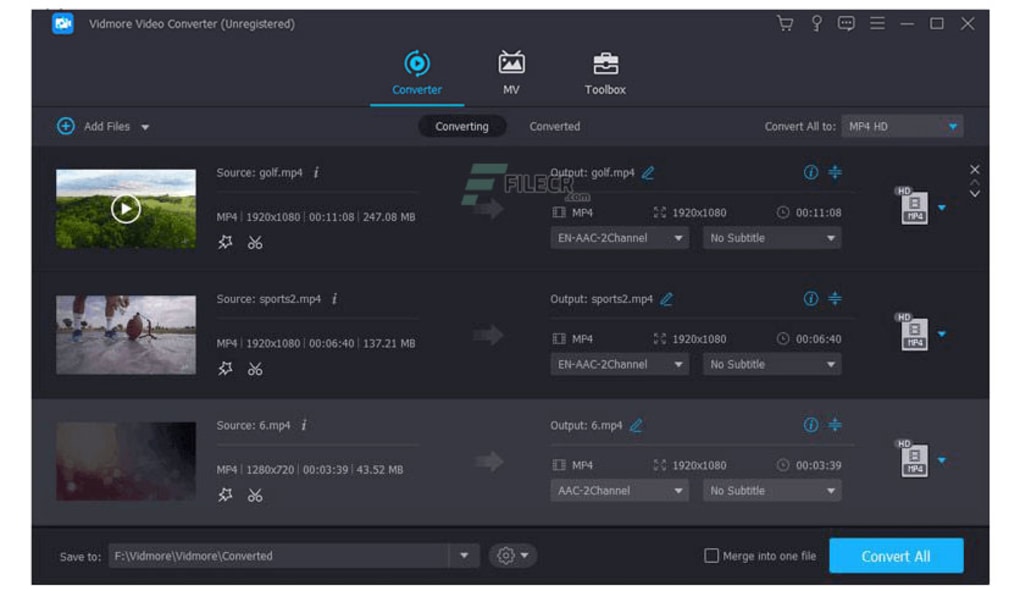
- Batch Processing: Queue unlimited files, apply the same settings across a folder, and let the engine work in the background.
- Video Editing Tools: Trim, crop, rotate, add subtitles, watermarks, and colour filters before conversion.
- Creative Collage & GIF Maker: Combine photos and video clips into custom slideshows or animated GIFs ready for social sharing.
- Secure & Private: No internet connection required for conversion; all processing stays on the local machine.
- Regular Updates: Monthly patches add new codecs, device presets, and performance improvements.
Installation, Usage & Compatibility
Installing Vidmore Video Converter is a straightforward process that takes less than five minutes on a modern PC or Mac. After downloading the installer from the official Vidmore website, run the .exe (Windows) or .dmg (macOS) file and follow the on‑screen prompts. The installer automatically checks for required Visual C++ Redistributables on Windows and prompts you to install them if missing. On macOS, the package is notarised by Apple, ensuring a smooth Gatekeeper pass‑through.
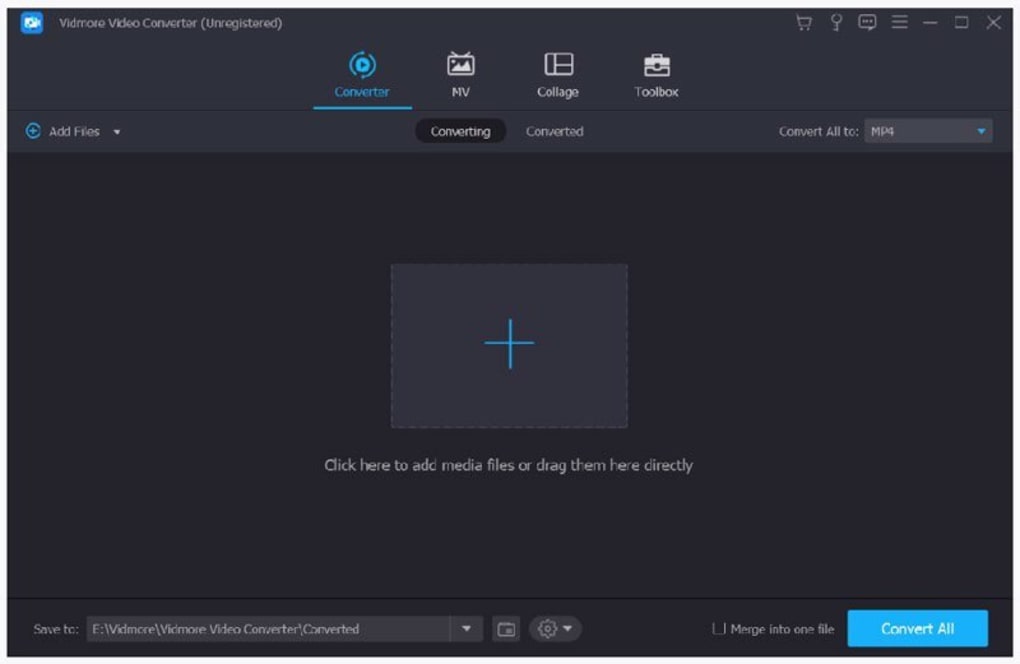
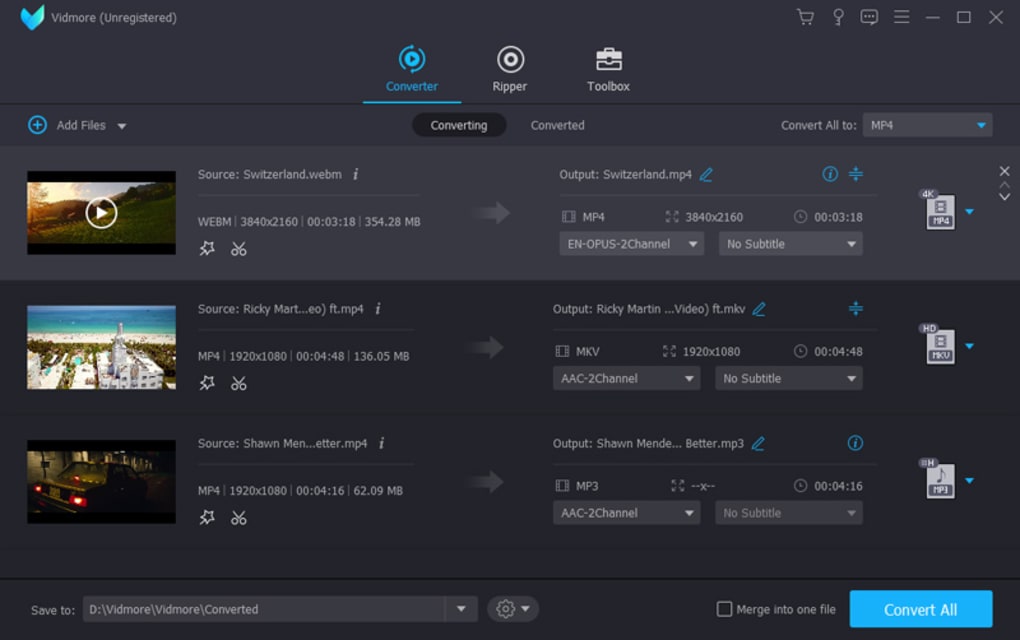
Once installed, launch the application and you will be greeted by a clean dashboard split into three main panels: Source Files, Presets & Settings, and Output Destination. Drag your video files into the Source area or click the Add Files button to browse. Vidmore automatically reads the metadata and suggests the most suitable preset based on the file’s resolution and codec. If you prefer a custom setup, click the Advanced Settings tab to manually adjust bitrate, frame rate, audio channels, and subtitle tracks.
Compatibility-wise, Vidmore Video Converter runs on:
- Windows 10, Windows 11 (64‑bit)
- macOS 10.14 Mojave and later (Intel and Apple Silicon via Rosetta 2)
The software detects compatible hardware during the first launch. If your system contains an Intel CPU with Quick Sync support, an NVIDIA GPU with CUDA cores, or an AMD Radeon card, Vidmore will enable hardware‑accelerated encoding automatically. Users with older hardware can still perform software‑based conversion, though processing times will be longer. For best performance, Vidmore recommends at least 8 GB of RAM and a dual‑core processor for SD conversion; 4K upscaling benefits from 16 GB RAM and a modern quad‑core CPU.
After configuring your settings, select an output folder, hit Convert, and watch the progress bar. The built‑in queue manager allows you to pause, resume, or reorder jobs at any time. When the conversion finishes, Vidmore offers a one‑click “Open Folder” button and a direct “Share to Social Media” option, streamlining the workflow from raw footage to published content.
Pros & Cons
Pros
- Extensive format support eliminates the need for multiple tools.
- Device‑specific presets speed up conversion for smartphones, tablets, and TVs.
- Hardware acceleration dramatically reduces rendering time on modern PCs.
- Integrated video editor and collage maker add creative flexibility.
- Clear, ad‑free interface that is easy for beginners yet powerful for pros.
- Regular updates keep codec library current and improve stability.
Cons
- Full feature set is only unlocked after purchasing a license; free trial adds watermarks.
- Advanced settings can be overwhelming for users who never tweak codecs.
- macOS version lacks native Apple Silicon optimisation (relies on Rosetta 2).
- No built‑in streaming server; you must upload files manually after conversion.
Overall Rating: 4.5/5 – Vidmore Video Converter balances ease of use with professional‑grade features, making it a solid choice for both casual users and content creators.
FAQ & Final Verdict
Is Vidmore Video Converter free to use?
Vidmore offers a 7‑day free trial that includes all core features but adds a small watermark to exported videos. To remove the watermark and unlock unlimited conversions, you need to purchase a license (one‑time or subscription).
Can I convert videos to 4K resolution?
Yes. Vidmore supports upscaling to true 4K (3840×2160) while preserving colour depth. The quality of the upscaled video depends on the source material and hardware acceleration.
Which operating systems are supported?
The software runs on Windows 10/11 (64‑bit) and macOS 10.14 Mojave or later. macOS users on Apple Silicon can run Vidmore via Rosetta 2, though native performance is not yet optimised.
Does Vidmore support hardware‑accelerated conversion?
Absolutely. The program detects Intel Quick Sync, NVIDIA CUDA, and AMD Radeon acceleration and enables it automatically when compatible hardware is present, cutting conversion time by up to 70 %.
Can I edit videos before converting them?
Yes. Vidmore includes basic editing tools such as trimming, cropping, rotating, adding subtitles, watermarks, and colour filters. These edits are applied during the conversion process, eliminating the need for a separate editor.
Final Verdict: Vidmore Video Converter offers a rare blend of simplicity and power. Its massive format library, device‑specific presets, and hardware‑accelerated 4K upscaling make it a compelling choice for anyone who wants to convert videos quickly without sacrificing quality. While the free trial adds a watermark and the macOS version could benefit from native Apple Silicon support, the overall value—especially with the one‑time purchase option—outweighs these minor drawbacks. If you need a secure, fast, and feature‑rich video converter for Windows or macOS, click the button below to download the trial and see how Vidmore can streamline your media workflow.







